

Last Updated: 18/02/2026 This guide is regularly updated to reflect the latest AI models and tools available.
Are you seeing the “Error Fetching Connectors Connections” message in ChatGPT and feeling stuck? You’re not alone. This error has been reported by many users, and while it can interrupt your workflow, it’s usually easy to fix once you know the root causes.
In this troubleshooting guide, we’ll walk you through quick fixes, advanced solutions, and best practices to resolve the issue. By the end, you’ll be back to using ChatGPT without interruptions.
Table of Contents
1. Understanding the “Error Fetching Connectors Connections”
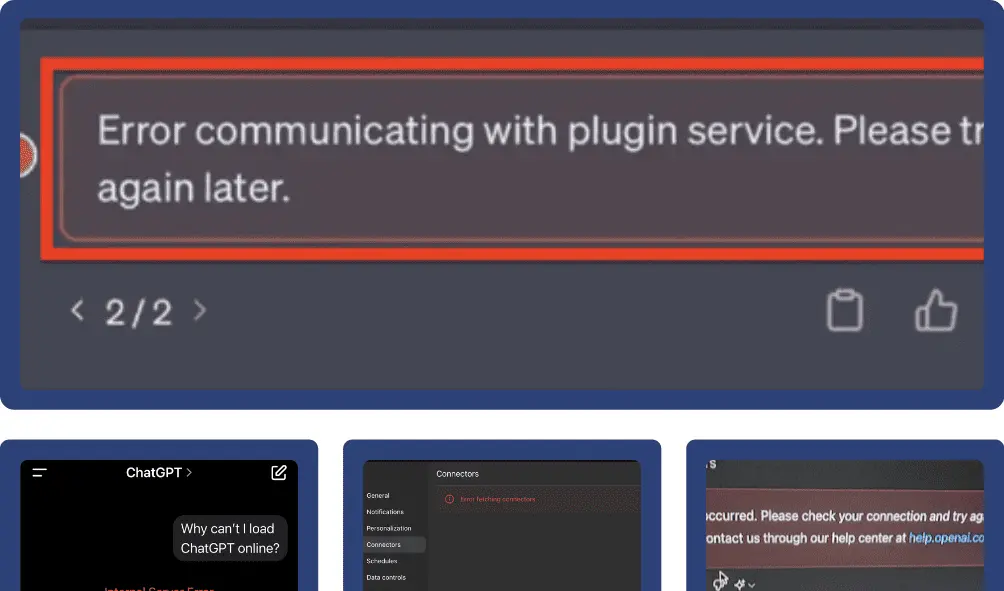
The error occurs when ChatGPT struggles to communicate with one of its connectors (integrations with plugins, APIs, or external tools). This can prevent ChatGPT from connecting to browsers, productivity apps, DALL·E, or custom GPTs.
Common Scenarios Where You Might See This:
- Opening the plugin store
- Trying to install a new plugin
- Attempting to load previously connected tools
- Switching between GPT-4 and GPT-4 Turbo modes
⚠️ Why Does the Error Fetching Connectors Happen?
Here are the most common reasons you might be experiencing this plugin error:
- Plugin store is down
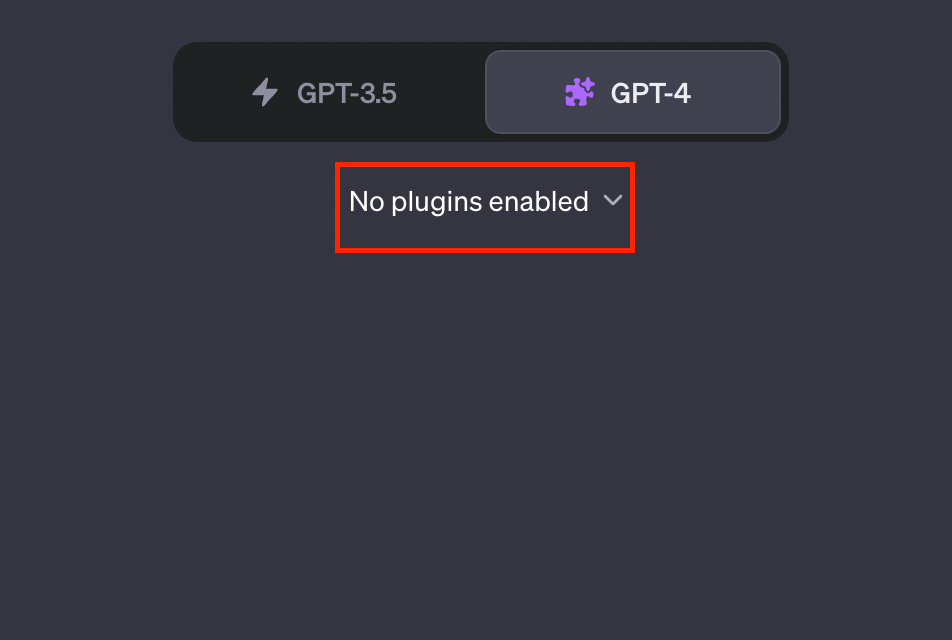
Sometimes ChatGPT servers temporarily go offline or glitch
- Network issues
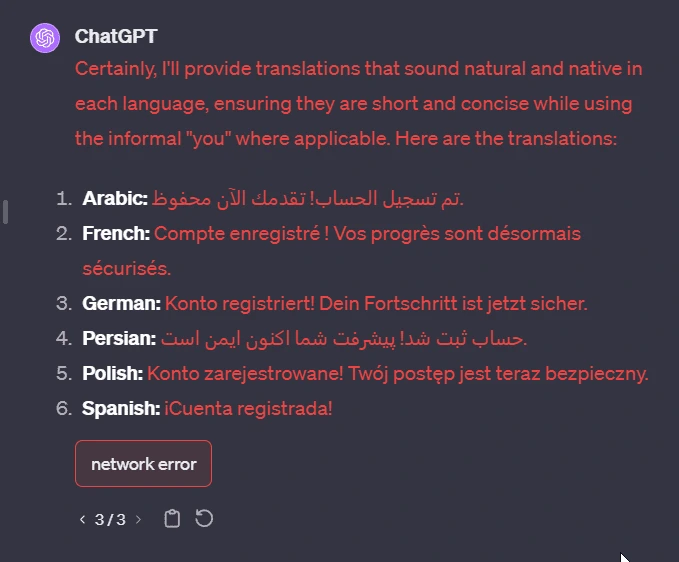
Poor internet or firewall restrictions can block access to connectors
- Cache or browser problems
Old cookies, browser extensions, or corrupted sessions may interfere
- Account restrictions
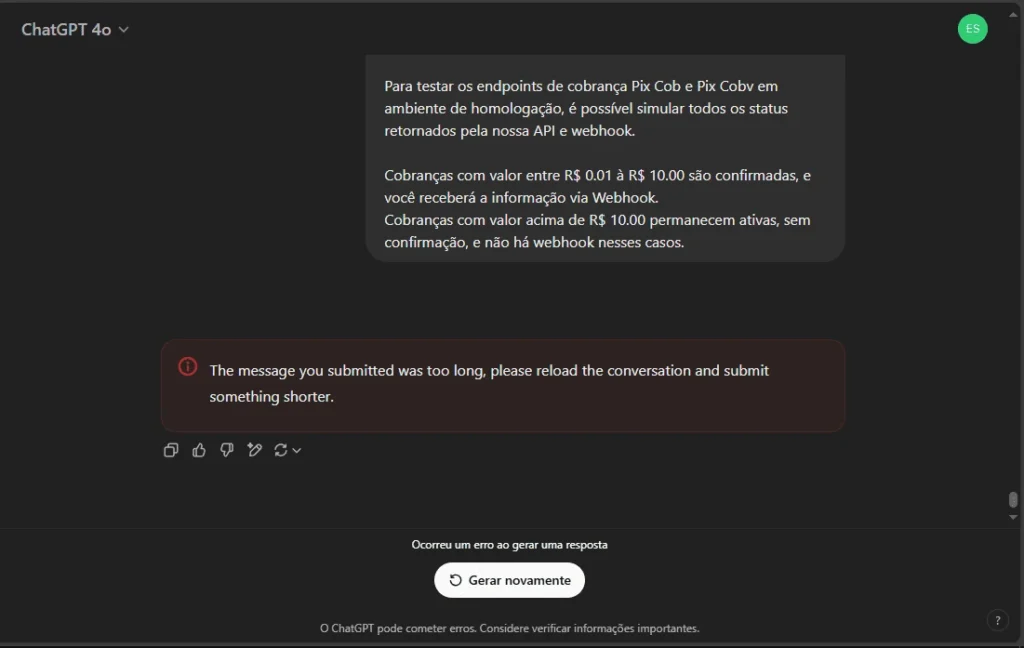
Not all accounts (especially free users) have plugin access
- Plugin configuration issues
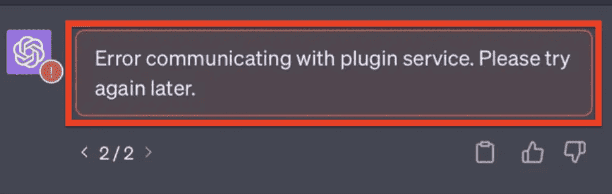
Incorrect or missing API keys during plugin setup
- ChatGPT update bugs
Platform updates may temporarily disrupt connector loading
- Rate-limiting or throttling
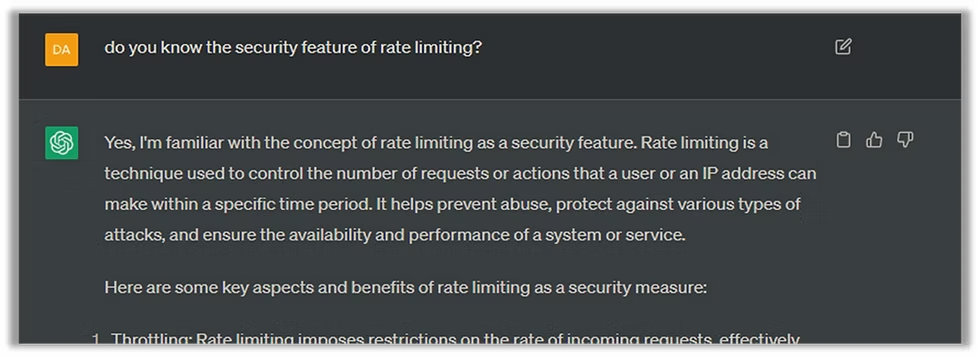
Too many rapid plugin interactions may trigger OpenAI’s security mechanisms
🛠️ How to Fix “Error Fetching Connectors”
Let’s dive into the fixes, starting with the most effective ones first.

1. Refresh and Re-login
- Sign out of ChatGPT
- Clear cookies and cache
- Log back in
- Switch back to GPT-4 and check the plugin tab
Pro tip: If you’re using a browser extension for ChatGPT, try disabling it temporarily. Some extensions conflict with plugin loading.
2. Check OpenAI Server Status
Before trying anything drastic, head over to https://status.openai.com/.
If there’s an ongoing issue with the plugin store, connectors, or GPT-4 API, it’ll be reported there.
3. Verify Plugin Access Is Enabled
- Click your profile icon
- Go to Settings > Beta Features
- Ensure that Plugins and Browse with Bing are toggled ON
You won’t be able to access connectors if this is disabled, even with GPT-4 enabled.
4. Switch to a Supported Browser
Make sure you’re using a supported browser like:
- Google Chrome (latest version)
- Microsoft Edge
- Firefox
Avoid using in-app browsers or outdated software.
5. Disable Ad Blockers or Privacy Tools
Tools like uBlock Origin or DuckDuckGo Privacy Essentials can block ChatGPT from fetching third-party plugin data.
Temporarily disable them or whitelist chat.openai.com.
6. Restart in Incognito Mode
Sometimes your browser’s extensions interfere. Try using ChatGPT in Incognito/Private mode to eliminate third-party conflicts.
If it works here, the issue is likely with one of your browser extensions.
7. Check Your Internet Connection or VPN
If you’re on a VPN or corporate firewall, it could be blocking ChatGPT’s requests to its plugin servers.
Try:
- Switching to a different network (mobile hotspot or home Wi-Fi)
- Turning off your VPN
- Allowing ChatGPT in your firewall settings
8. Wait and Try Again Later
In rare cases, the plugin server may simply be down or undergoing maintenance. If none of the above steps work, it could be on OpenAI’s end.
Check again in 30–60 minutes and monitor OpenAI’s status page or X (Twitter) updates.
Advanced Troubleshooting (If You’re a Developer or Power User)
If you’re more technically inclined or working with the ChatGPT API, consider these deeper checks:
Inspect Network Logs
Open Developer Tools > Network Tab in your browser and reload ChatGPT. Check for failed requests especially ones pointing to:
arduino
CopierModifier
Look for error codes like:
- 403 Forbidden (account issues)
- 429 Too Many Requests (rate-limiting)
- 500 Internal Server Error (OpenAI-side bug)
Check Plugin API Key Configuration

If you’re using custom connectors or APIs:
- Verify your API keys are valid
- Make sure you haven’t exceeded usage limits
- Check CORS or authentication errors on your backend
Tool Comparison: Browsers for Plugin Stability
Here’s a quick comparison of browsers and their performance with ChatGPT plugins:
| Browser | Plugin Compatibility | Speed | Issues Encountered |
| Chrome (latest) | ✅ Full support | 🚀 Fast | Minimal (recommended) |
| Firefox | ✅ Full support | ⚡ Fast | Occasional script delays |
| Edge | ✅ Full support | 🚀 Fast | Some extension conflicts |
| Safari | ⚠️ Partial | 🐢 Slow | Script-blocking issues |
| Brave | ⚠️ Mixed results | ⚡ Fast | Privacy shields block plugins |
Related Plugin Issues You Might Encounter
If you’re seeing the “error fetching connectors”, you might also run into these related plugin errors:
- “Plugin failed to initialize
- “Unable to load plugin store”
- “This plugin requires authentication”
- “403 Forbidden when accessing plugin”
Each of these has overlapping causes usually network permissions, account limits, or misconfigured APIs.
FAQ: Fixing “Error Fetching Connectors” in ChatGPT

1. What does “error fetching connectors” mean in ChatGPT?
It means ChatGPT can’t load its plugins or external connectors due to network, browser, or platform-related issues.
2. Is this issue happening to everyone or just me?
It depends. If OpenAI is experiencing downtime, it may be affecting all users. Otherwise, it could be your setup.
3. Can I fix this without a Pro subscription?
If you’re not a Pro user, you likely don’t have plugin access at all. This error is common when free users try accessing plugin features.
4. Will switching to GPT-3.5 solve the issue?
No, GPT-3.5 doesn’t support plugins. You must be on GPT-4 or GPT-4 Turbo with plugins enabled.
5. How long does it take for OpenAI to fix plugin issues?
Usually within a few hours. Keep checking the OpenAI status page.
6. What if none of the fixes work?
Contact OpenAI support or post in the OpenAI Community Forum for account-specific help.
Conclusion: Get Back to Using Plugins in ChatGPT
You now have a full roadmap for solving the “error fetching connectors” in ChatGPTfrom basic browser fixes to advanced debugging for developers. This issue is annoying, but usually temporary or easily fixed with a few adjustments.
✅ Clear cache
✅ Check plugin access
✅ Use the right browser
✅ Monitor OpenAI’s status
If you found this guide helpful, don’t keep it to yourself.
Share this post, bookmark it for future plugin errors, and subscribe to ToolPromptly.com for more tech troubleshooting guides!










2 thoughts on “How to Fix “Error Fetching Connectors Connections” in ChatGPT (Step-by-Step Guide)”