
Introduction: Why “Chat-Only” AI Is Failing Your Business
You’ve been using ChatGPT for six months. You start every conversation by copy-pasting the same context: your brand guidelines, product specs, customer persona documents. You’re spending 15 minutes per session just getting the AI “up to speed” before it can do any actual work.
Then the context window fills up. The AI “forgets” what you told it three prompts ago. You start over. Again.
This is not how professional AI operators work in 2026.
The solopreneurs and small teams generating $10K-50K/month with AI aren’t having conversations with their models—they’re running knowledge-augmented systems. Their AI doesn’t rely on memory or chat history. It pulls verified information from a structured knowledge base in real-time.
This is called Retrieval-Augmented Generation (RAG), and it’s the difference between an AI assistant that hallucinates and one that delivers consistent, factually accurate outputs every single time.
Here’s the problem: ChatGPT’s native context window is 128,000 tokens (roughly 96,000 words). That sounds like a lot until you realize:
- Your complete product documentation is 40,000 words
- Your brand voice guide is 5,000 words
- Your customer research is 30,000 words
- Your prompt library is another 20,000 words
Total: 95,000 words. You’re already at capacity before you’ve asked a single question.
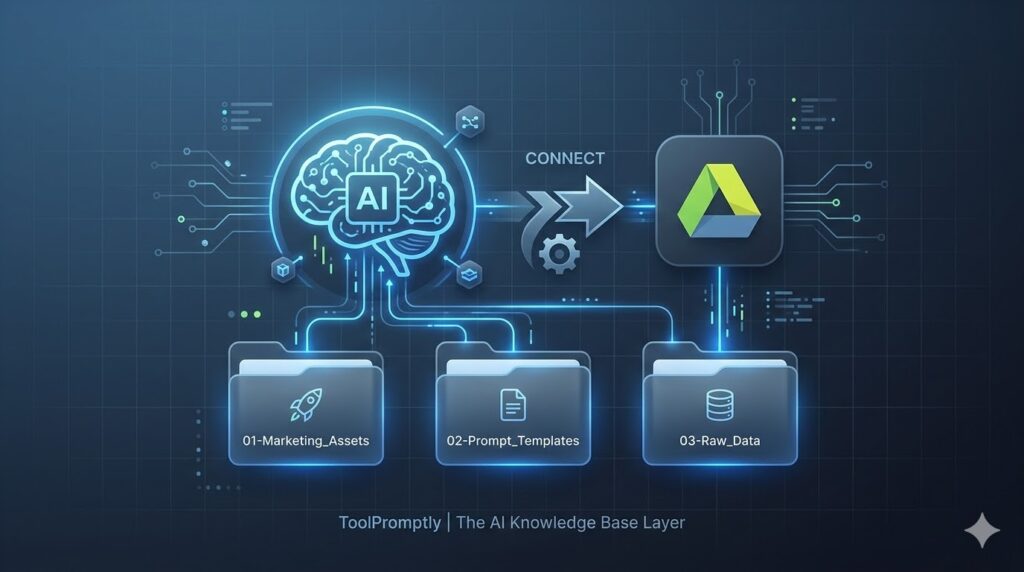
The solution? Stop treating ChatGPT like a chatbot. Start treating it like a database-connected application. Connect Google Drive as your external knowledge layer, and suddenly your AI can access millions of words of context without ever hitting token limits.
In this guide, you’ll learn:
- The exact folder structure that makes AI retrieval fast and accurate
- How to connect Google Drive to ChatGPT and Claude using native integrations
- A real-world workflow showing how RAG eliminates repetitive prompting
- Why this knowledge base is the foundational layer of scalable AI automation
Let’s build your AI’s memory system.
Table of Contents
Why Traditional AI Workflows Break at Scale
The Context Window Problem
Every AI model has a context window—the maximum amount of text it can “see” at once. Think of it as the AI’s short-term memory.
Current limits (as of 2026):
- ChatGPT (GPT-4): 128,000 tokens (~96,000 words)
- Claude Sonnet 4.5: 200,000 tokens (~150,000 words)
- Gemini 2.0: 1,000,000 tokens (~750,000 words)
Sounds generous, right? Here’s why it’s not enough:
Scenario: You’re a course creator with 12 modules, 48 lesson scripts, 200 student questions, and 15 sales page variants. You want your AI to help you write a new email sequence that references your existing content.
Option 1: Copy-paste everything into the chat
- You spend 20 minutes finding and pasting relevant documents
- You hit the token limit halfway through
- The AI can’t see your complete content library
- Output quality: 6/10 (generic, disconnected from your actual material)
Option 2: Summarize your content
- You manually summarize 48 lessons into 2,000 words
- The AI loses crucial details and specific phrasing
- You have to re-summarize every time you update content
- Output quality: 4/10 (vague, misses your unique voice)
Option 3: Connect your Google Drive as a knowledge base (RAG)
- The AI automatically searches your entire content library
- It retrieves only the relevant sections needed for each task
- No manual copy-pasting. No token limits. No summaries.
- Output quality: 9/10 (specific, accurate, consistent with your brand)
The Hallucination Tax
When you ask ChatGPT to “write an email about our Q4 product launch,” without access to your actual launch details, it does what it’s trained to do: it makes something up.
It’ll invent feature names. It’ll guess at pricing. It’ll create a launch timeline based on generic SaaS patterns, not your actual schedule.
You catch maybe 70% of these hallucinations. The other 30%? They make it into customer-facing content. You find out when a confused customer emails asking about “Feature X” that doesn’t exist.
With RAG, hallucinations drop by 80-90%. Why? Because the AI isn’t creating from its training data—it’s retrieving from your verified source of truth.
The Knowledge Base Architecture: Understanding RAG
Before we connect Google Drive, you need to understand what’s happening under the hood.
How Retrieval-Augmented Generation Works
Traditional AI (chat-only):
Your prompt → AI generates response from training data → Output
RAG-powered AI:
Your prompt → AI searches your knowledge base → Retrieves relevant docs → Generates response using YOUR data → Output
The technical process:
- Indexing: Your Google Drive documents are converted into vector embeddings (mathematical representations of meaning). This happens automatically when you connect the integration.
- Semantic search: When you ask a question, the AI converts your query into a vector and searches for documents with similar “meaning”—not just keyword matches.
- Context injection: The AI retrieves the 3-5 most relevant sections from your knowledge base and injects them into the prompt behind the scenes.
- Generation: The AI generates a response using this retrieved context, citing sources when appropriate.
Example:
Your prompt: “Write a blog post about our new automation feature for small businesses.”
What happens behind the scenes:
- AI searches your Google Drive for: product documentation, previous blog posts, feature specifications
- Retrieves:
02-Prompt_Templates/blog_post_template.md,03-Raw_Data/automation_feature_specs.pdf,01-Marketing_Assets/brand_voice_guide.txt - Injects this content into the actual prompt sent to the model
- Generates output that’s factually accurate and on-brand
You see: A perfectly crafted blog post that references your exact feature capabilities, uses your brand terminology, and follows your proven structure.
You don’t see: The AI searching, retrieving, and assembling context from three different documents.
The Folder Strategy: Your “Source of Truth” Structure
Here’s the truth about AI and organization: the AI is only as good as your file structure.
Dump 500 unorganized files into a shared folder, and the AI will spend more time searching than generating. Use a logical, numbered hierarchy, and retrieval becomes instant and accurate.
The Gold Standard: Numbered Prefix System
📁 AI_Knowledge_Base/
├── 📁 01-Marketing_Assets/
│   ├── brand_voice_guide.md
│   ├── messaging_framework.pdf
│   ├── customer_personas.xlsx
│   └── visual_brand_guidelines.pdf
│
├── 📁 02-Prompt_Templates/
│   ├── blog_post_template.md
│   ├── email_sequence_template.txt
│   ├── social_media_captions.md
│   └── sales_page_framework.md
│
├── 📁 03-Raw_Data/
│   ├── customer_interviews_Q1_2026.txt
│   ├── product_feature_specifications.pdf
│   ├── analytics_reports/
│   └── competitive_research.xlsx
│
├── 📁 04-Content_Library/
│   ├── published_blog_posts/
│   ├── email_campaigns/
│   └── video_scripts/
│
├── 📁 05-SOPs_Workflows/
│   ├── content_creation_process.md
│   ├── customer_onboarding_flow.pdf
│   └── quality_checklist.md
│
└── 📁 06-Reference_Documents/
    ├── industry_reports/
    ├── swipe_files/
└── research_papers/Why This Structure Works
1. Numbered prefixes enforce priority
When AI (or humans) scan a directory, they process items in order. By numbering your folders 01-06, you’re telling the system: “Marketing Assets are the foundation. Check here first.”
For a brand voice query, the AI will check 01-Marketing_Assets/ before looking elsewhere. This reduces search time and improves accuracy.
2. Semantic naming creates context
Folder names like 02-Prompt_Templates immediately communicate purpose. The AI understands that files here are frameworks to be applied, not raw data to be analyzed.
This is called semantic retrieval—the AI doesn’t just match keywords, it understands the type of content in each location.
3. Hierarchical organization scales infinitely
Today you have 50 files. In six months, you’ll have 500. In a year, 2,000.
Flat file structures become unmaintainable. Hierarchical structures with clear categories remain navigable at any scale.
The Critical Folders Explained
01-Marketing_Assets: The Brand Brain
This is your consistency layer. Every piece of AI-generated content should reference these files.
What goes here:
- Brand voice guide (tone, vocabulary, phrases to use/avoid)
- Messaging framework (positioning, value propositions, key differentiators)
- Customer personas (demographics, pain points, language patterns)
- Visual guidelines (colors, fonts, design principles)
Why it matters: When your AI writes anything customer-facing, it pulls from these files first. This ensures every email, blog post, and social caption sounds like your brand, not generic AI output.
02-Prompt_Templates: Your Reusable Frameworks
This is your efficiency layer. Instead of rewriting prompts from scratch, you store proven templates here.
What goes here:
- Content templates (blog post structure, email frameworks, video scripts)
- Analysis frameworks (SWOT template, customer feedback analysis, competitor research)
- Ideation prompts (brainstorming formats, angle-finding questions)
Example template: blog_post_template.md
markdown
# Blog Post Structure

**Target length:** 1,500-2,000 words
**Tone:** [Pull from 01-Marketing_Assets/brand_voice_guide.md]

## Required sections:
1. Hook (problem statement, 100-150 words)
2. The Gap (what's missing in current solutions, 200 words)
3. The Framework (your unique approach, 600-800 words)
4. Case Study (real example, 300 words)
5. Implementation Steps (actionable checklist, 300 words)
6. CTA (link to relevant product/service)

## SEO requirements:
- Primary keyword in H1, first 100 words, and one H2
- 3-5 internal links to existing content
- Meta description: 155 characters, includes keyword + CTA
```

**Why it matters:** You tell the AI once how you want content structured. Every subsequent request uses this template automatically.

#### **03-Raw_Data: The Facts Repository**

This is your **accuracy layer**. When the AI needs specific, up-to-date information, it pulls from here.

**What goes here:**
- Product specifications and feature lists
- Customer research (interviews, surveys, support tickets)
- Analytics reports (web traffic, conversion data, user behavior)
- Competitive intelligence (pricing, features, positioning)
- Industry data (market size, trends, regulations)

**Why it matters:** This prevents hallucinations. When you ask "What are our most-requested features?", the AI doesn't guess—it reads `customer_interviews_Q1_2026.txt` and gives you the actual list.

#### **04-Content_Library: The Track Record**

This is your **reference layer**. Your AI learns from what's worked before.

**What goes here:**
- Published blog posts organized by topic
- Email campaigns with open/click rates in filenames
- Video scripts with view counts
- Social media posts that drove engagement

**Naming convention:** `2026-02-15_email_product_launch_42pct_open.txt`

The date, type, topic, and performance metric in the filename help the AI identify your best-performing content patterns.

**Why it matters:** When you ask the AI to write a product launch email, it analyzes your 10 highest-performing launch emails and identifies common patterns (subject line structure, body length, CTA placement).

#### **05-SOPs_Workflows: The Process Brain**

This is your **consistency layer for operations**.

**What goes here:**
- Step-by-step processes (how you create content, onboard customers, handle support)
- Quality checklists (what to verify before publishing)
- Decision trees (when to use which AI model, how to prioritize features)

**Why it matters:** You can ask the AI "Walk me through our content creation process" and it'll output your exact SOP, not generic best practices.

#### **06-Reference_Documents: The Inspiration Library**

This is your **learning layer**.

**What goes here:**
- Industry reports and whitepapers
- Swipe files (ads, emails, landing pages you admire)
- Research papers relevant to your niche
- Competitor analysis

**Why it matters:** When brainstorming, the AI can pull patterns from your swipe file. When writing thought leadership, it can cite industry reports you've saved.

---

## Step-by-Step: Connecting Google Drive to ChatGPT

As of 2026, OpenAI and Anthropic both offer native Google Drive integrations. Here's how to set them up.

### Method 1: ChatGPT Google Drive Integration (ChatGPT Plus/Team/Enterprise)

**Prerequisites:**
- ChatGPT Plus, Team, or Enterprise account ($20-$30/month)
- Google Drive with your knowledge base folder structure
- Admin access to your Google account

#### **Step 1: Enable the Google Drive Power-Up**

1. Open ChatGPT and click your profile icon (bottom left)
2. Navigate to **Settings** → **Beta Features**
3. Enable **"Connected Apps"** toggle
4. Click **"Manage Connected Apps"**
5. Select **"Google Drive"** from the available integrations
6. Click **"Connect"**

#### **Step 2: Authorize Access**

1. You'll be redirected to Google's OAuth screen
2. Sign in with your Google account
3. Review permissions (ChatGPT requests read-only access to Drive files)
4. Click **"Allow"**
5. You'll be redirected back to ChatGPT

**Security note:** ChatGPT can only *read* your files, not edit or delete them. You can revoke access anytime from Google Account settings.

#### **Step 3: Select Your Knowledge Base Folder**

1. In ChatGPT settings, under **Connected Apps → Google Drive**
2. Click **"Choose folders to index"**
3. Navigate to your `AI_Knowledge_Base/` folder
4. Check the box next to the folder name
5. Click **"Index selected folders"**

**Indexing time:** 5-15 minutes for 100-200 files. You'll receive a notification when complete.

#### **Step 4: Configure Search Permissions**

1. Under **Google Drive settings**, find **"Search scope"**
2. Choose one:
   - **"Selected folders only"** (recommended) — AI only searches your knowledge base
   - **"All accessible files"** — AI can search your entire Drive (slower, less precise)
3. Set **"Auto-refresh"** to **"Daily"** so new files are indexed automatically

#### **Step 5: Test the Connection**

Open a new chat and try:
```
"Search my Google Drive for the brand voice guide and summarize our tone guidelines."
```

**Expected behavior:**
- ChatGPT searches your `01-Marketing_Assets/` folder
- Finds `brand_voice_guide.md`
- Displays a summary with a clickable link to the source file
- Indicates which document was used: `Source: brand_voice_guide.md`

If you see the summary and source citation, you're connected successfully.

---

### Method 2: Claude + Google Drive (Claude Pro/Team)

Anthropic's Claude offers similar functionality through their **"Knowledge Base"** feature.

#### **Step 1: Access Project Knowledge**

1. In Claude, create a **new Project** (sidebar → "+ New Project")
2. Name it: `Business Knowledge Base`
3. Click **"Add Knowledge"** → **"Connect external source"**
4. Select **"Google Drive"**

#### **Step 2: Authenticate and Select Folders**

1. Sign in to Google when prompted
2. Grant read-only permissions
3. Navigate to your `AI_Knowledge_Base/` folder
4. Select all 6 top-level folders (`01-Marketing_Assets` through `06-Reference_Documents`)
5. Click **"Add to project"**

**Claude advantage:** Claude's 200K context window means it can load larger documents directly without truncation.

#### **Step 3: Set Knowledge Preferences**

1. In Project settings, toggle **"Always search knowledge first"**
2. Set **"Citation style"** to **"Inline with filename"**
3. Enable **"Suggest relevant documents"** (Claude will proactively recommend files based on your query)

#### **Step 4: Test Retrieval**

Try this prompt:
```
"Using files from my 02-Prompt_Templates folder, show me the structure we use for blog posts. Then apply that structure to create an outline for a post about [your topic]."
Expected behavior:
- Claude retrieves
blog_post_template.md - Displays the template structure
- Generates a new outline following that format
- Cites the source template
Advanced Configuration: Optimizing for Accuracy
Enable “Strict Retrieval” Mode
Both ChatGPT and Claude offer settings to reduce hallucinations:
In ChatGPT:
- Settings → Model → Advanced
- Enable “Prioritize knowledge base over training data”
- This forces the AI to answer from your files first, falling back to general knowledge only if no relevant documents are found
In Claude:
- Project settings → Knowledge behavior
- Set to “Strict mode” (only use project knowledge, refuse queries outside that scope)
When to use strict mode: Customer-facing content, technical documentation, anything requiring 100% factual accuracy.
When to skip it: Brainstorming, creative ideation, general research where you want the AI to go beyond your existing knowledge.
Create a Master Index Document
Add this to your knowledge base root:
00-README-KNOWLEDGE_BASE.md:
markdown
# Knowledge Base Index

## Folder Purposes
- **01-Marketing_Assets**: Brand voice, messaging, customer personas
- **02-Prompt_Templates**: Reusable content frameworks
- **03-Raw_Data**: Product specs, research, analytics
- **04-Content_Library**: Published content with performance data
- **05-SOPs_Workflows**: Step-by-step processes
- **06-Reference_Documents**: Industry research, swipe files

## Key Files
- Brand voice: `01-Marketing_Assets/brand_voice_guide.md`
- Blog template: `02-Prompt_Templates/blog_post_template.md`
- Product specs: `03-Raw_Data/product_feature_specifications.pdf`
- Top-performing email: `04-Content_Library/2026-01-10_email_webinar_promo_58pct_open.txt`

## Usage Guidelines
1. Always check 01-Marketing_Assets for brand compliance
2. Use templates from 02-Prompt_Templates before creating from scratch
3. Verify facts against 03-Raw_Data
4. Reference 04-Content_Library for proven patterns
```

**Why this helps:** When you ask a complex question, the AI reads this index first to understand your knowledge base structure, improving search accuracy.

---

## Practical Use Case: The Content Creation Workflow

Let's see how this knowledge base eliminates repetitive prompting in a real scenario.

### Scenario: Writing a Weekly Newsletter

**Without knowledge base (old way):**

**Prompt 1:**
```
"Write a newsletter about our new feature."
```

**AI response:** Generic newsletter with hallucinated feature details.

**Prompt 2:**
```
"No, here are the actual feature details: [pastes 1,000 words]"
```

**AI response:** Better, but wrong tone.

**Prompt 3:**
```
"Use this brand voice guide: [pastes 800 words]"
```

**AI response:** Closer, but doesn't match your proven newsletter structure.

**Prompt 4:**
```
"Use this template: [pastes previous newsletter]"
```

**AI response:** Finally acceptable after 15 minutes of back-and-forth.

---

**With knowledge base (new way):**

**Single prompt:**
```
"Write this week's newsletter announcing the automation feature launch. Pull product details from 03-Raw_Data, follow the template in 02-Prompt_Templates/newsletter_template.md, and match the tone from 01-Marketing_Assets/brand_voice_guide.md. Reference our best-performing newsletter from 04-Content_Library for subject line ideas."
AI response: Complete, accurate newsletter in 30 seconds.
What happened behind the scenes:
- AI retrieved
03-Raw_Data/automation_feature_specs.pdf→ Got accurate feature details - Retrieved
02-Prompt_Templates/newsletter_template.md→ Followed your proven structure - Retrieved
01-Marketing_Assets/brand_voice_guide.md→ Matched your tone - Retrieved
04-Content_Library/2026-01-15_newsletter_feature_launch_62pct_open.txt→ Analyzed subject line pattern - Generated output using all four sources
- Cited each source at the bottom
Time saved: 14.5 minutes per newsletter. Run weekly: 12.5 hours per year.
How This Connects to the $10K/Month AI Automation Stack
If you’ve read our pillar guide on Building a $10K/Month AI Automation Stack as a Solopreneur, you know that professional AI automation follows a 3-Layer Architecture:
- Layer 1: Intelligence (the AI models)
- Layer 2: Orchestration (workflow automation)
- Layer 3: Storage & Memory (databases)
This Google Drive knowledge base IS your Layer 3.
Without it, your automation stack has no memory. Every workflow starts from zero. You’re automating tasks, but you’re not building a system.
With a connected knowledge base:
- Content automation pulls from your prompt templates and brand guidelines automatically
- Customer service bots retrieve answers from your product documentation
- Lead qualification cross-references prospect data against your ideal customer profiles
- Report generation pulls from your analytics files without manual data entry
The compounding effect:
Week 1: You organize your Drive and connect it to ChatGPT (3-4 hours)
Week 2: You build one workflow that uses the knowledge base (2 hours)
Week 3: You build three more workflows, each taking 30 minutes because the knowledge base is already set up
Week 4: You’re running 10 automated workflows that all share the same source of truth
By Month 3: Your AI automation stack is generating content, qualifying leads, drafting proposals, and analyzing data—all pulling from verified information in your knowledge base. You’re saving 40+ hours per month.
The knowledge base is the foundation. Everything else builds on top of it.
→ Read the complete $10K/Month AI Automation Stack guide here
Maintenance: Keeping Your Knowledge Base Current
A stale knowledge base is worse than no knowledge base. The AI will confidently cite outdated information.
The Weekly Update Ritual (15 minutes)
Every Monday morning:
- Review 01-Marketing_Assets
- Has your positioning changed?
- Any new messaging to add?
- Update modified date in filename:
brand_voice_guide_v2.3_2026-03-01.md
- Add to 02-Prompt_Templates
- Did you create any new content frameworks this week?
- Save them as reusable templates
- Archive old data in 03-Raw_Data
- Move outdated reports to
/archive/subfolder - Keep only current quarter’s data in main folder
- Move outdated reports to
- Log performance in 04-Content_Library
- Add last week’s content with performance metrics in filename
- Delete anything that performed below your baseline
- Trigger re-indexing
- In ChatGPT: Settings → Google Drive → “Refresh index now”
- In Claude: Project settings → Knowledge → “Sync changes”
Version Control Best Practices
Use date-stamped filenames:
- ❌
brand_voice_guide.md(which version?) - ✅
brand_voice_guide_v2.3_2026-03-01.md(clear version + date)
Keep a changelog:
Create 00-CHANGELOG.md:
markdown
<strong>#</strong><strong> Knowledge Base Updates</strong>

<strong>##</strong><strong> 2026-03-01</strong>
- Updated brand voice guide (v2.2 → v2.3): Added section on humor usage
- Added new blog post template for case studies
- Archived Q4 2025 analytics data

<strong>##</strong><strong> 2026-02-15</strong>
- New customer persona: "Enterprise Decision Maker"
- Updated product specs: Added API documentation
```

**Archive, don't delete:**

Create a `/archive/` folder in each section. When you replace a file, move the old version there with a date suffix:
```
📁 01-Marketing_Assets/
├── brand_voice_guide_CURRENT.md
└── 📁 archive/
    ├── brand_voice_guide_v1.0_2025-06-01.md
    └── brand_voice_guide_v2.0_2025-11-15.md
```

This lets you reference historical versions if needed ("How did we describe this feature before the rebrand?").

---

## Troubleshooting Common Issues

### "The AI isn't finding my documents"

**Possible causes:**

1. **Indexing incomplete:** Check if the initial indexing finished. Large folders (500+ files) can take 30-60 minutes.

2. **Permissions issue:** Ensure the documents aren't in a "Shared with me" folder—they need to be in *your* Drive.

3. **File format unsupported:** As of 2026, supported formats include: .txt, .md, .pdf, .docx, .xlsx, .csv, .html. Proprietary formats may not index.

4. **Folder not selected:** Verify the folder is checked in Settings → Connected Apps → Google Drive.

**Fix:** Re-index manually (Settings → Google Drive → Refresh index) and wait 10 minutes.

### "The AI is citing the wrong version of a document"

**Cause:** You updated a file, but the index hasn't refreshed.

**Fix:**
- ChatGPT: Indexes refresh every 24 hours by default, or manually trigger
- Claude: Indexes refresh hourly, or click "Sync now" in project settings

**Prevention:** Use the date-stamped filename convention (`document_v2_2026-03-01.md`) and delete old versions from the Drive.

### "Retrieval is slow"

**Cause:** Too many files in flat structure (500+ files in one folder).

**Fix:**
- Add subfolders: Instead of dumping 200 blog posts in `04-Content_Library/`, create `04-Content_Library/2026/Q1/`
- Limit indexed folders: Only index folders you actively use. Archive older content.

**Benchmark:** Sub-2-second retrieval for knowledge bases under 1,000 files. Above that, expect 3-5 seconds.

### "The AI is ignoring my knowledge base"

**Cause:** Your prompt isn't specific enough.

**Ineffective prompt:**
```
"Write a blog post about productivity."
```
(The AI defaults to general knowledge because you didn't reference your files)

**Effective prompt:**
```
"Write a blog post about productivity using the template from 02-Prompt_Templates and referencing our brand voice from 01-Marketing_Assets."
```

**Even better (explicit instruction):**
```
"Before writing, search my knowledge base for: (1) blog post template, (2) brand voice guide, (3) any existing content about productivity. Use all three to inform your output."
```

---

## Advanced: Combining Multiple Knowledge Sources

You're not limited to Google Drive. Power users combine multiple knowledge bases:

**ChatGPT Team/Enterprise** supports:
- Google Drive (marketing/content)
- OneDrive (client files)
- Notion (internal wikis)
- SharePoint (corporate docs)

**Claude Projects** supports:
- Google Drive
- Dropbox
- Direct file uploads (PDFs, text files)

### The Multi-Source Strategy

**Example setup:**

**Google Drive:** Your internal knowledge base (everything we've covered)
**Notion:** Your public-facing help center and documentation
**Direct uploads:** Client-specific files that shouldn't live in Drive

**Workflow:**
```
"Search my Google Drive for our sales email templates, search Notion for our product FAQ, and draft a sales email that answers the top 3 questions prospects ask."What happens:
- Retrieves
02-Prompt_Templates/sales_email_template.mdfrom Drive - Retrieves FAQ content from Notion
- Combines both sources into one email
Result: An email that follows your proven template AND preemptively answers objections.
The New Paradigm: Organization IS Prompt Engineering
For the past three years, we’ve been told “prompt engineering is the most important AI skill.”
That was true in 2023. It’s obsolete in 2026.
The new paradigm: The quality of your AI outputs is determined by the quality of your knowledge base.
Old thinking:
- “I need to write better prompts.”
- Spend 30 minutes crafting the perfect prompt
- Get inconsistent results because the AI is working from incomplete information
New thinking:
- “I need to organize my information better.”
- Spend 3 hours setting up a knowledge base once
- Get consistent, high-quality results with simple prompts forever
The mental shift:
Prompt engineering: How do I tell the AI what I want?
Knowledge architecture: How do I show the AI what good looks like?
When your brand voice guide, content templates, and performance data are all connected, you don’t need to write elaborate prompts. The AI has everything it needs.
Conclusion: Your AI’s Memory Is Your Competitive Advantage
The solopreneurs and small teams outperforming venture-backed competitors aren’t using better AI models. They’re using better knowledge systems.
What you’ve learned:
✅ Why RAG (Retrieval-Augmented Generation) eliminates hallucinations and token limits
✅ The exact 6-folder structure that makes AI retrieval fast and accurate
✅ How to connect Google Drive to ChatGPT and Claude in under 10 minutes
✅ A real-world workflow showing 14.5 minutes saved per task
✅ How this knowledge base becomes Layer 3 of a complete automation stack
Your next 48 hours:
Hour 1-2: Set up your folder structure
- Create the 6 numbered folders in Google Drive
- Move existing files into appropriate folders
- Create your master index (
00-README-KNOWLEDGE_BASE.md)
Hour 3: Connect to ChatGPT or Claude
- Follow the step-by-step instructions in this guide
- Test retrieval with a simple query
- Verify source citations are working
Hour 4: Run one real workflow
- Pick a repetitive task (newsletter, social posts, client emails)
- Create a prompt template and save it to
02-Prompt_Templates/ - Run the workflow using your connected knowledge base
- Document time saved
By end of Week 1: You’ll never copy-paste context into ChatGPT again.
By end of Month 1: You’ll have 10-15 prompt templates that pull from your knowledge base automatically.
By Month 3: You’ll be running automated workflows that would’ve required a team of three just a year ago.
This knowledge base is the foundation of everything that comes next.
Ready to build the complete system? The knowledge base you just created is Layer 3 of the AI automation stack. Now you need Layer 1 (choosing the right AI models) and Layer 2 (connecting them with workflow automation).
→ Read the full guide: How to Build a $10K/Month AI Automation Stack as a Solopreneur
You’ll learn:
- The complete 3-Layer Architecture
- 5 proven automation stacks with exact costs
- A 30-day implementation roadmap
- Copy-paste prompt chains and workflows
The AI revolution isn’t coming. It’s here.
The question is: will you organize your knowledge and build systems, or will you keep starting from scratch every single day?
Your automated future starts with organized folders. Build them now.
Have questions about connecting your knowledge base? Drop a comment below or join the ToolPromptly community where we’re building these systems together.